Editable 2026–2027 Teacher Planner
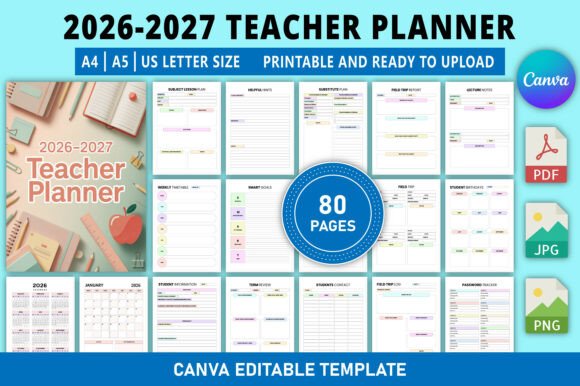
Teaching isn’t just about delivering lessons—it’s about juggling deadlines, tracking progress, communicating with families, adapting to student needs, and protecting your own energy. The Editable 2026–2027 Teacher Planner meets that reality head-on: a single, flexible system built for educators who want clarity—not clutter—and customization—not compromise.
What This Planner Actually Is (and Isn’t)
This isn’t a static PDF you print once and outgrow by October. It’s a fully editable Canva template—meaning every text box, color, font, layout block, and section title is yours to change. You’re not stuck with someone else’s idea of “organization.” You shape it to fit how *you* think, teach, and plan.
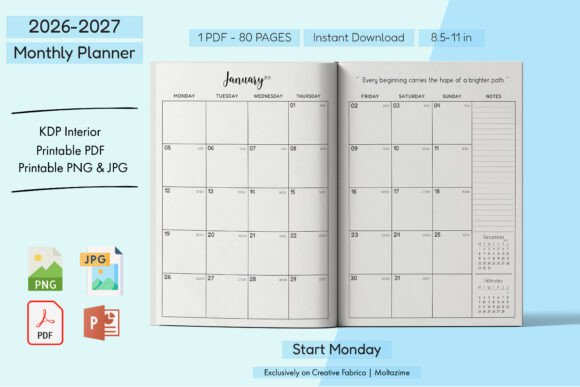
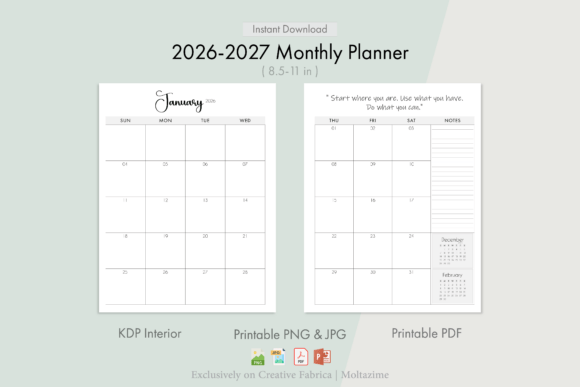
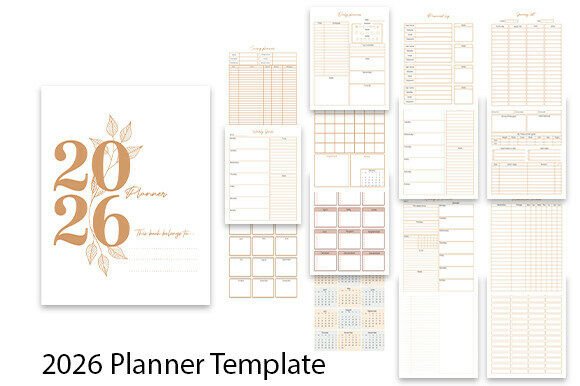
It covers both academic years in full: dual calendars, monthly spreads for January 2026 through December 2027, plus classroom-specific tools like lesson plans (with two versions), term reviews, seating charts, grade trackers, and even student birthdays. Print sizes include A4, A5, and US Letter—so whether you prefer a compact notebook or a spacious desk planner, it adapts.
Why It Matters—Differently—for Different Educators
A first-year teacher in a high-needs school might open this planner looking for structure: a clear weekly timetable, a place to log absences without losing track, and lesson plan templates that reduce cognitive load on late nights. For them, the value is in reliability and simplicity—knowing where everything lives so they can focus on students, not formatting.
A veteran special education teacher may care more about flexibility. They might delete the standard weekly lesson grid and replace it with a behavior goal tracker, embed IEP deadlines into monthly pages, or recolor sections to align with classroom visual supports. Their priority isn’t “filling in boxes”—it’s making the tool reflect their actual workflow.
For instructional coaches or department leads, the editable nature unlocks collaboration. They can duplicate the planner, rename sections for team meetings or observation cycles, add shared reflection prompts, and export clean, branded versions for staff workshops—all without design experience.
Creators & Small Business Owners See Another Layer
Educators who also run TPT stores, offer PD workshops, or manage tutoring businesses often need to shift roles quickly—teacher one hour, content creator the next. With this planner, they can repurpose sections: turn the “Term Plan” into a course launch timeline, use the “Assignment Planner” to map blog posts or video scripts, or adapt the student contact sheet into a client onboarding form.
The Canva link means no software installs, no licensing fees, and no steep learning curve—just click, edit, download. That speed matters when you’re balancing teaching prep with building something new.
What Beginners Notice First
If you’ve never used a digital planner before, the biggest relief here is low friction. You don’t need to learn Notion or set up databases. You open Canva (free account works), click the link, start typing. Want your lesson plan headers in navy instead of teal? Two clicks. Prefer bullet points over tables for homework tracking? Swap it. There’s no “wrong way”—just what works for *your* brain.
Beginners also benefit from the built-in scaffolding: having a “Student Information” page already laid out helps them remember to collect key details early—even if they later simplify or expand it.
What Experienced Users Value Most
Veteran educators often skip generic tools because they’ve spent years refining their own systems—spreadsheets, notebooks, sticky notes, hybrid setups. What makes the Editable 2026–2027 Teacher Planner worth trying isn’t novelty—it’s fidelity. It preserves what they already know works (like daily schedule blocks or grade tracking logic) while removing manual upkeep.
They appreciate that fonts and spacing are classroom-ready—no pixelated text or cramped margins when printed. And because it’s editable, they can integrate their existing resources: paste in district-mandated rubrics, embed links to Google Forms, or add QR codes to student-facing materials.
Practical Uses Beyond the Obvious
- Substitute planning: Duplicate the weekly lesson page, fill in clear instructions, and save as a “Sub Folder” version—no reformatting needed.
- Parent conference prep: Use the Student Contact + Attendance + Grade Tracker combo to pull talking points in under two minutes.
- Professional growth: Repurpose the “Term Review” as a self-reflection tool—add prompts like “What strategy surprised me?” or “Where did I lean on routine vs. responsiveness?”
- Co-teaching: Share the Canva link with a partner teacher, assign different sections to each person, and merge updates in real time.
How to Know If It Fits *Your* Needs
Ask yourself:
- Do you prefer editing *on screen* (Canva) over handwriting—or do you want both? (This planner prints cleanly, but its power shines in digital editing.)
- Are you more motivated by clean visuals or functional simplicity? (The design is warm and professional—not flashy—but highly customizable if you enjoy personalizing aesthetics.)
- Do you need long-term consistency across two school years? (Having 2026 *and* 2027 built in avoids mid-year template swaps or mismatched layouts.)
- Is “one place for everything” more valuable than hyper-specialized tools? (It doesn’t replace your LMS gradebook—but it *connects* your planning, scheduling, and relationship-tracking in ways standalone apps rarely do.)
It won’t replace deep curriculum work—but it removes friction *around* that work. It won’t solve staffing shortages—but it gives you back small pockets of time otherwise lost to admin chaos. And it won’t make teaching easy—but it helps you meet the year with grounded intention, not just reactive hustle.
Whether you’re mapping your first unit or mentoring new teachers, whether you teach kindergarten or AP Chemistry, whether you plan in bursts or in quiet Sunday mornings—the Editable 2026–2027 Teacher Planner starts where you are. Not where a template assumes you should be.